New Outlook Add-in Installation
Starting with Cyberhaven Sensor version 24.04, Cyberhaven provides an add-in for the New Microsoft Outlook (September 2023 release). The add-in leverages Microsoft 365 integrated app deployment, extending Cyberhaven coverage to Outlook on macOS devices while maintaining support for Windows. Use this guide to deploy the add-in through the Microsoft 365 admin center. For Outlook (Classic) on Windows, continue using the Outlook (Classic) plugin installation guide.
Note The add-in runs only in the New Microsoft Outlook. It is not compatible with Outlook (Classic).
Prerequisites
Review the Plugin Prerequisites guide for the full set of requirements, rollout considerations, and feature limitations that apply to the New Outlook add-in. Confirm endpoints satisfy those prerequisites—including sensor deployment, supported Outlook versions, Microsoft account usage, network access, pilot deployment planning, and known feature gaps—before proceeding with installation.
Deploy the Cyberhaven add-in
- Sign in to the Microsoft 365 admin center with an account that can manage integrated apps.
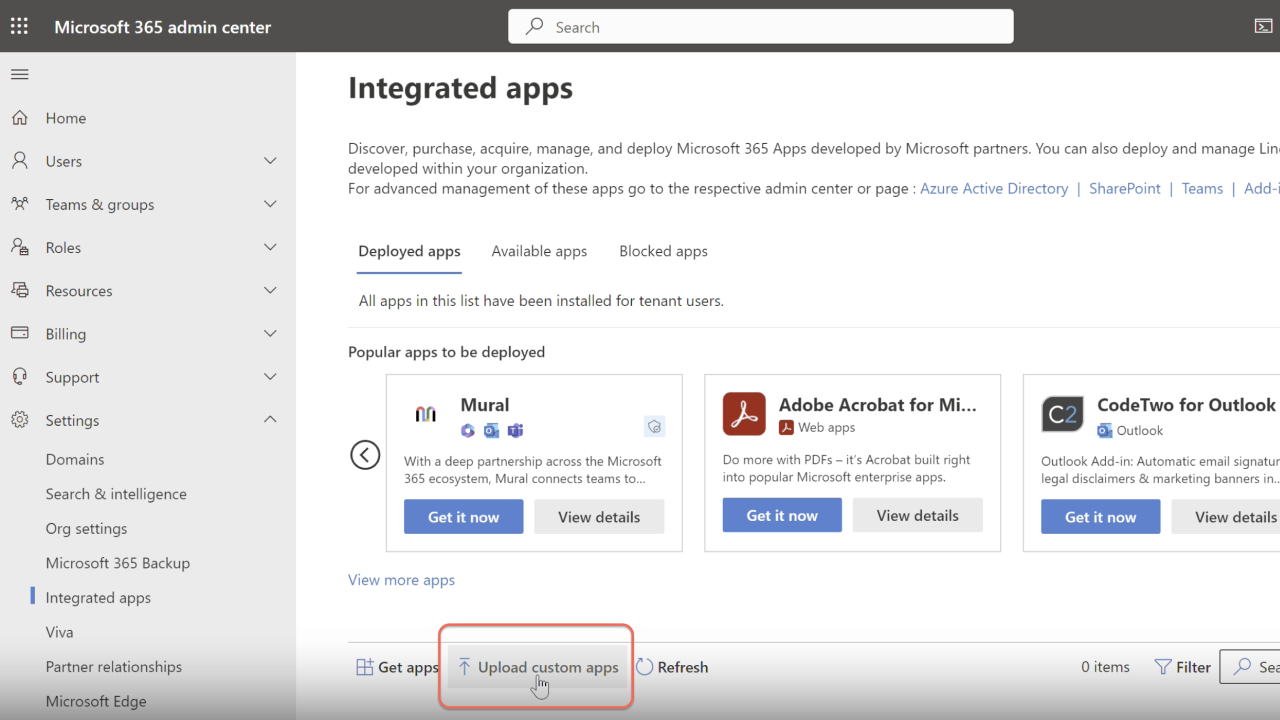
- Navigate to Settings > Integrated apps and select Upload custom apps.
- In Upload custom app, set App type to Office Add-in.
- Provide the Cyberhaven manifest by either:
- Downloading the manifest locally and uploading it, or
- Supplying the hosted manifest URL:
https://content.cyberhaven.io/outlook-addin/manifest.xml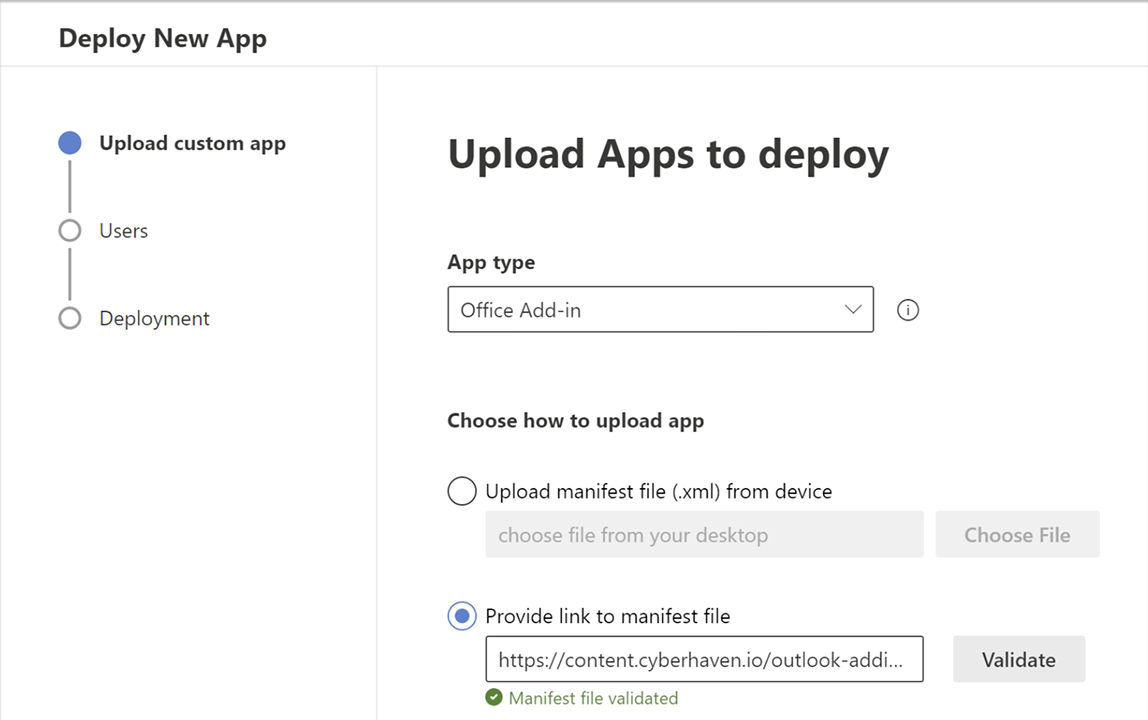
- Click Validate, then choose Next.
- On the Users page, select the users or groups for the phased rollout. Cyberhaven recommends targeting a pilot group before broad deployment.
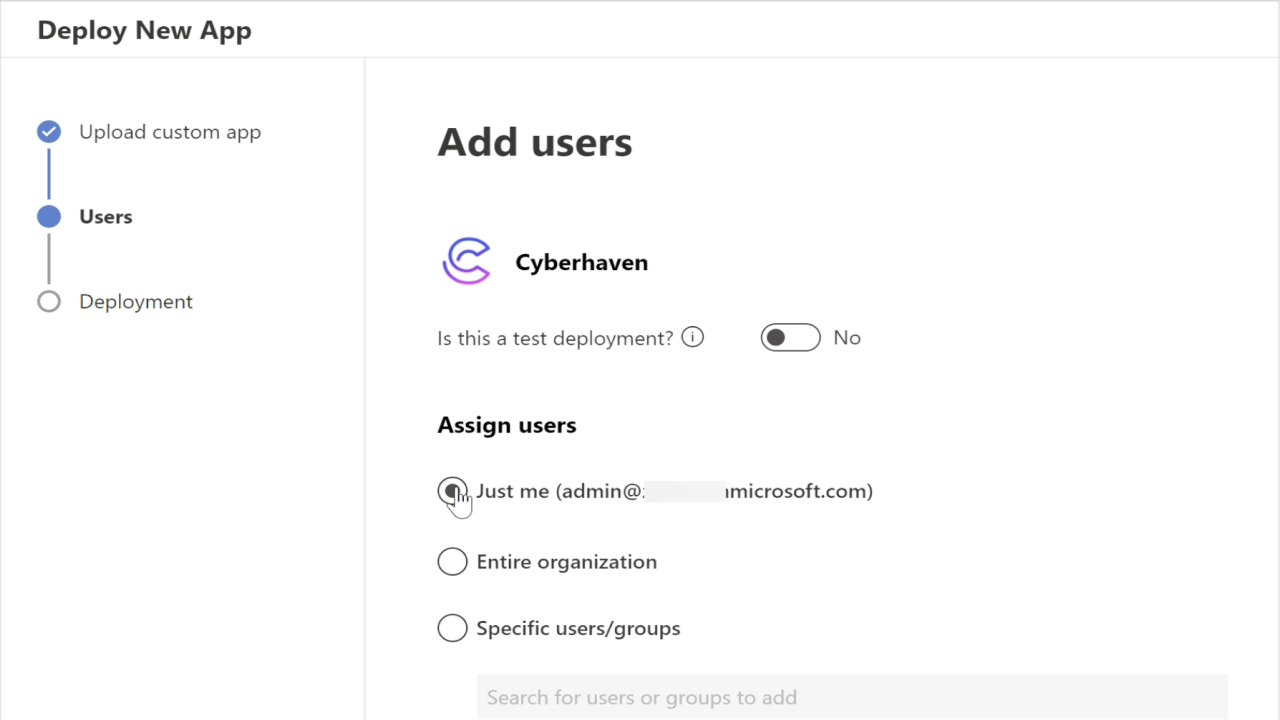
- Select Next.
- Review and accept the requested permissions on the Deployment page.
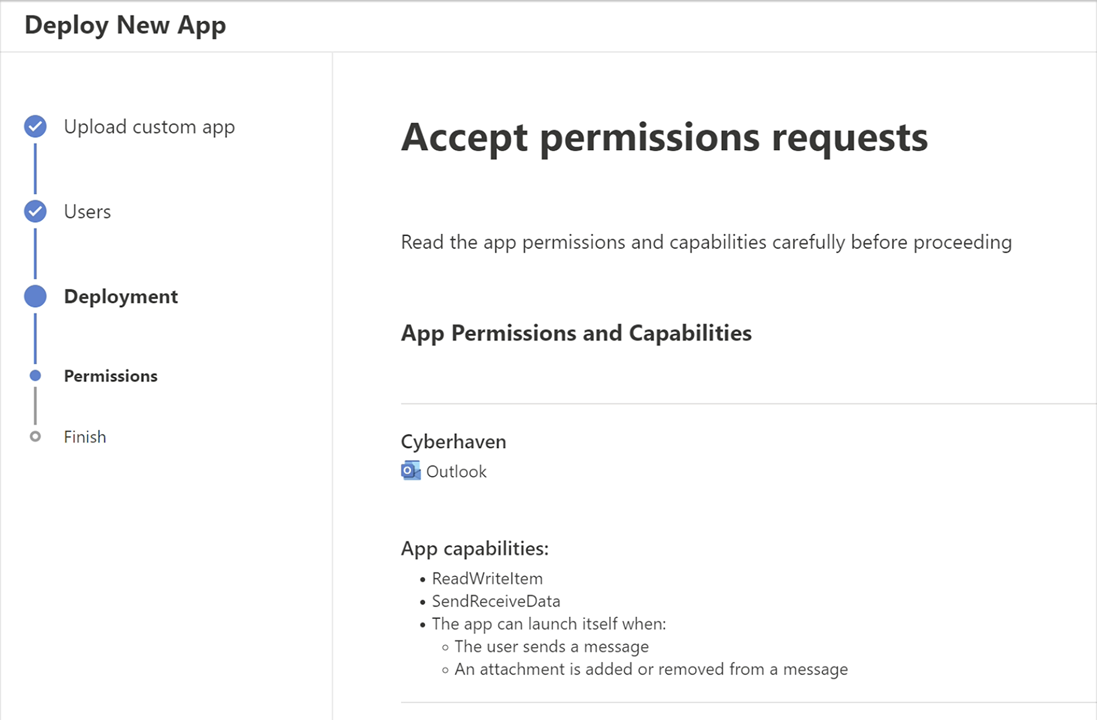
- Click Finish to start the deployment.
Microsoft typically makes the add-in available in Outlook clients (Windows and macOS) for the selected users within six hours of deployment. When the add-in initializes in Outlook on the web, users may briefly see the Microsoft message "Cyberhaven is working on your request."

Troubleshooting
For diagnostic steps, including log collection and registry validation, see Troubleshooting Office Plugins.